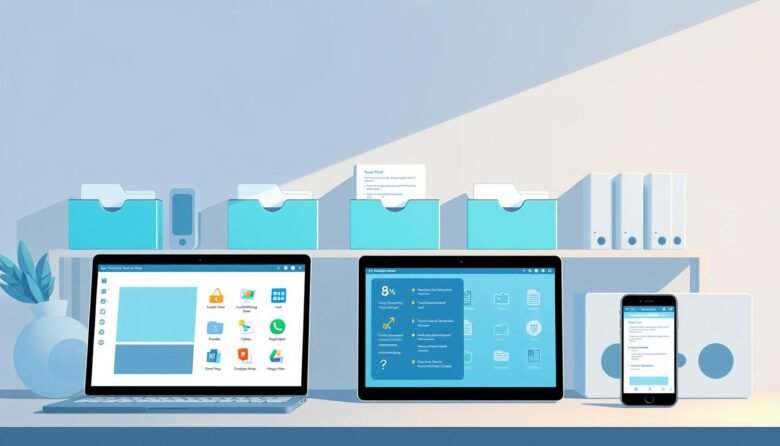
In today’s digital age, effective digital organization is crucial for productivity. With the ever-increasing amount of digital data, it can be challenging to keep your files in order.
Smart folders can help simplify this task by automatically sorting and categorizing your files. This automation not only saves time but also reduces the stress associated with manual file management.
By implementing auto sorting through smart folders, you can ensure that your digital life remains organized and clutter-free.
Key Takeaways
- Simplify your digital life with automated file organization.
- Reduce time spent on manual file sorting.
- Improve productivity with a clutter-free digital environment.
- Enhance your overall digital experience.
- Stay organized with the latest in digital organization technology.
Understanding the Chaos of Digital File Management
As we continue to produce and accumulate digital content, the need for effective file management strategies becomes increasingly important. The sheer volume of files we’re dealing with on a daily basis can be overwhelming, from documents and images to videos and audio files.
The Growing Challenge of Digital Clutter
Digital clutter is a growing problem that affects productivity and efficiency. When files are not organized properly, it becomes difficult to locate the information we need in a timely manner. This disorganization can lead to wasted time, missed deadlines, and increased stress levels.
The issue is compounded by the fact that many of us are now working remotely or across multiple devices, making it even harder to maintain a consistent folder management system.
Common File Organization Pain Points
Many individuals face common challenges when trying to organize their digital files. These include deciding on a consistent naming convention, determining the best folder structure, and managing file duplication. Moreover, the lack of a standardized system can make it difficult to share files with others or collaborate on projects.
By understanding these pain points, we can begin to explore solutions that simplify file automation and enhance overall digital organization.
What Are Smart Folders and Auto-Sorting Systems?
Smart folders and auto-sorting systems are revolutionizing the way we manage our digital files. These innovative tools are designed to automate the process of organizing files, making it easier to maintain a clutter-free digital environment.
Defining Smart Folders vs. Traditional Folders
Smart folders differ significantly from traditional folders in their functionality. Unlike traditional folders, which require manual sorting and organization, smart folders use predefined rules to automatically categorize and sort files. This automation saves time and reduces the effort required to maintain an organized digital file system.
How Auto-Sorting Technology Works
Auto-sorting technology works by applying a set of predefined rules to files as they are saved or added to the system. These rules can be based on various criteria, such as file type, date created, or specific keywords. Once a file meets the criteria set forth in the rule, it is automatically sorted into the appropriate smart folder, ensuring that files are consistently organized without manual intervention.
Virtual vs. Physical File Organization
The distinction between virtual and physical file organization is crucial in understanding the benefits of smart folders. Virtual file organization, facilitated by smart folders and auto-sorting systems, allows for flexible and dynamic organization that isn’t limited by physical storage constraints. In contrast, physical file organization is bound by the physical space available and can become cumbersome as the volume of files grows.
By leveraging smart folders and auto-sorting systems, individuals and organizations can significantly improve their workflow efficiency and reduce the time spent on file management, allowing for a more productive use of time.
Benefits of Implementing Smart File Management, Smart Folders, and Auto Sorting
The benefits of smart file management, including smart folders and auto-sorting, are multifaceted. By implementing these systems, individuals can experience a significant transformation in their digital workflow and overall productivity.
Time-Saving Advantages
One of the primary benefits of smart file management is the substantial time saved in organizing and retrieving files. Auto-sorting technology automatically categorizes files into designated folders, eliminating the need for manual sorting. This feature is particularly beneficial for individuals dealing with a large volume of files.
Improved Productivity and Workflow
Smart file management systems not only save time but also enhance productivity by streamlining workflows. With files automatically organized, individuals can focus on more critical tasks. Moreover, the reduced time spent on file management translates to increased efficiency in completing projects.
Reduced Digital Stress and Cognitive Load
Digital clutter can lead to increased stress and cognitive load. Smart file management systems help mitigate this issue by maintaining a well-organized digital environment. The reduction in digital clutter contributes to a clearer mental space, allowing individuals to concentrate on their work without unnecessary distractions.
In conclusion, the implementation of smart file management, smart folders, and auto-sorting offers numerous benefits, including time-saving advantages, improved productivity, and reduced digital stress. By embracing these systems, individuals can significantly enhance their digital organization and overall workflow efficiency.
Essential Tools for Smart Folder Automation
To effectively automate folder management, one must first identify the right tools for the job. The good news is that there are numerous options available, ranging from built-in operating system solutions to third-party applications.
Built-in Operating System Solutions
Most operating systems come with built-in features that can help automate folder management. For Mac users, macOS Smart Folders offer a powerful way to dynamically organize files based on specific criteria.
macOS Smart Folders
macOS Smart Folders use saved searches to create dynamic folders that automatically update based on predefined rules. This feature is particularly useful for organizing files by date, kind, or other attributes.
Windows Search Folders
Similarly, Windows users can utilize Search Folders to achieve similar functionality. While not as dynamic as macOS Smart Folders, Windows Search Folders allow users to save searches for quick access to organized file lists.
Third-Party File Management Applications
For users requiring more advanced features, third-party applications offer a robust solution. Hazel for Mac is a popular choice among Mac users, providing automated file organization based on user-defined rules.
Hazel for Mac
Hazel watches designated folders and automatically organizes files according to user-set rules. It can rename, move, or perform various actions on files, making it a powerful tool for maintaining a tidy digital environment.
DropIt for Windows
Windows users can benefit from DropIt, an application that automates file management by applying user-defined rules to files. DropIt can sort, copy, move, or delete files, among other actions, streamlining the file organization process.
Cross-Platform Solutions
For those using multiple operating systems or collaborating across different platforms, cross-platform solutions are available. These tools often integrate with cloud storage services, providing a unified way to manage files across different operating systems.
By leveraging these tools, users can significantly enhance their file management capabilities, making it easier to maintain an organized digital workspace. Whether using built-in features or third-party applications, the key is to find the solution that best fits one’s workflow and preferences.
Setting Up Basic Smart Folder Rules
The key to effective smart folder automation lies in establishing clear and relevant rules. By setting up basic smart folder rules, you can significantly improve your file management system, making it easier to locate and access your files.
Organizing by File Type
One of the simplest ways to start organizing your files is by type. This involves creating smart folders that automatically sort documents, images, videos, and other file types into separate folders. For instance, you can have a smart folder that automatically moves all PDF files to a designated “Documents” folder.
Date-Based Organization Systems
Date-based organization is another effective method. You can create smart folders that sort files based on when they were created or modified. This is particularly useful for managing files that have time-sensitive information, such as project files or financial documents.
Content-Based Sorting Techniques
For more advanced users, content-based sorting can be incredibly powerful. This involves creating rules that sort files based on their content, such as keywords in documents or metadata in images. This method requires a bit more setup but can greatly enhance your productivity by ensuring that related files are always grouped together.
Implementing Naming Conventions
Finally, implementing consistent naming conventions across your files can make a big difference. Smart folders can be set up to automatically rename files according to predefined rules, ensuring that your files are always clearly labeled and easy to identify. This is especially useful when working with large numbers of files or collaborating with others.
By combining these basic smart folder rules, you can create a robust smart folder system that streamlines your digital workflow and boosts your overall productivity.
Advanced Smart Folder Automation Strategies
For those looking to optimize their digital organization, advanced smart folder automation strategies offer a wealth of benefits. By implementing these sophisticated techniques, you can further streamline your file management process, enhance productivity, and reduce digital clutter.
Creating Multi-Condition Rules
One of the most powerful features of advanced smart folder automation is the ability to create multi-condition rules. This allows you to sort files based on multiple criteria, such as file type, date created, and file size. For instance, you can create a rule that automatically moves all PDFs created in the last month to a specific folder, while also renaming them according to a predefined naming convention.
To create a multi-condition rule, you’ll typically need to access the advanced settings of your smart folder software. Here, you can specify multiple conditions and actions, allowing for highly customized file organization. For example, you might set up a rule that moves files to a “Projects” folder if they contain a specific keyword in their title and are of a certain file type.
Automated File Renaming and Tagging
Automated file renaming and tagging are crucial aspects of advanced smart folder automation. By applying consistent naming conventions and tags to your files, you can significantly improve their discoverability and organization. Many smart folder systems allow you to create rules that automatically rename files based on metadata, such as the date created or the author’s name.
For instance, you could set up a rule that renames all incoming invoices with a specific prefix, followed by the date received. Similarly, you can automate the tagging process, assigning relevant keywords to files based on their content or other attributes. This not only aids in search but also helps in categorizing files across different folders and systems.
Nested Smart Folder Hierarchies
Nested smart folder hierarchies offer a way to create complex organizational structures within your file system. By nesting smart folders within one another, you can create a layered approach to file organization. For example, you might have a top-level smart folder for “Projects,” which contains sub-folders for different project types, each with its own set of rules and conditions.
This hierarchical structure allows for a more granular and nuanced approach to file organization, enabling you to capture and act upon different file attributes at various levels. It’s particularly useful for large-scale or complex file systems where a single layer of organization might not be sufficient.
Workflow Automation with Smart Folders
Workflow automation is a key benefit of advanced smart folder automation. By integrating smart folders with other tools and systems, you can automate entire workflows, from file receipt to processing and storage. For instance, you could set up a smart folder that not only organizes incoming documents but also triggers a workflow that notifies team members, applies OCR, and moves the files to a collaboration platform.
This level of automation can significantly enhance productivity, reduce manual errors, and improve overall efficiency. By leveraging smart folders as part of a broader workflow automation strategy, you can create a seamless and highly efficient digital workflow that supports your organizational goals.
Cloud-Based Smart Organization Solutions
The rise of cloud storage has transformed digital organization, offering users a more efficient and scalable way to manage their files. Cloud-based smart organization solutions are particularly noteworthy, as they combine the benefits of cloud storage with advanced file management capabilities.
Google Drive and Dropbox Smart Features
Google Drive and Dropbox are two of the most popular cloud storage services that offer smart features for file organization. Google Drive’s search functionality, powered by AI, allows for quick location of files based on content, while Dropbox offers features like file versioning and automated folder organization. These features significantly enhance productivity by reducing the time spent searching for files.
Microsoft OneDrive Automation
Microsoft OneDrive integrates seamlessly with Windows 10, offering automated file organization through its “Quick Access” feature. This allows users to easily access frequently used files and folders. Additionally, OneDrive’s integration with Microsoft Office enables real-time collaboration and automatic saving of files, further streamlining file management.
Integrating Cloud and Local Smart Folders
For many users, integrating cloud storage with local file systems is crucial. This integration allows for the synchronization of smart folders across devices, ensuring that files are organized consistently whether accessed locally or through the cloud. This hybrid approach offers the flexibility and security needed for effective digital organization.
Security Considerations for Automated Cloud Systems
While cloud-based smart organization solutions offer numerous benefits, security remains a top concern. Users must consider encryption, two-factor authentication, and access controls to protect their data. Choosing a reputable cloud service provider that prioritizes security is essential for safeguarding sensitive information.
In conclusion, cloud-based smart organization solutions represent a significant advancement in digital file management. By leveraging the capabilities of services like Google Drive, Dropbox, and Microsoft OneDrive, users can achieve a more organized, efficient, and secure digital environment.
Troubleshooting Common Smart Folder Issues
Even with the best setup, smart folders can sometimes hit a snag, requiring some troubleshooting to get back on track. When issues arise, understanding how to address them is crucial for maintaining an efficient file automation system.
Fixing Rule Conflicts and Overlaps
One common issue with smart folders is rule conflicts or overlaps. This occurs when multiple rules apply to the same file, causing confusion about where the file should be sorted. To fix this, review your rules for any overlaps and adjust the priorities or conditions as needed. Ensuring clear and distinct rules is key to preventing conflicts and maintaining a smooth folder management process.
Dealing with Unrecognized File Types
Sometimes, smart folders may not recognize certain file types, preventing them from being sorted correctly. To address this, check if the file type is supported by your system or application. If not, consider converting the file to a supported format or updating your software to recognize the file type. This ensures that all your files are properly managed through file automation.
Performance Optimization for Large File Systems
Large file systems can sometimes slow down the performance of smart folders. To optimize performance, consider limiting the number of files within a single folder or breaking down large folders into smaller, more manageable subfolders. Regularly cleaning up unnecessary files can also help maintain productivity.
Recovering from Automation Mistakes
If your smart folder automation makes a mistake, such as misplacing important files, it’s essential to have a recovery plan. Regular backups can be a lifesaver, allowing you to restore files to their correct locations. Additionally, reviewing your automation rules regularly can help prevent mistakes from happening in the first place.
Future-Proofing Your Digital Organization System
As your digital life continues to evolve, it’s essential to future-proof your file management system. This involves regularly reviewing and updating your smart folder rules to ensure they remain relevant and effective.
To maintain a streamlined workflow, consider implementing a periodic audit of your digital organization system. This will help you identify areas for improvement and make adjustments as needed.
Effective digital organization also involves staying adaptable. Be prepared to adjust your file management strategies as new technologies emerge or your needs change.
By prioritizing flexibility and ongoing maintenance, you can ensure your file management system continues to support your productivity and workflow goals.

Spencer Blake is a developer and technical writer focused on advanced workflows, AI-driven development, and the tools that actually make a difference in a programmer’s daily routine. He created Tips News to share the kind of knowledge that senior developers use every day but rarely gets taught anywhere. When he’s not writing, he’s probably automating something that shouldn’t be done manually.